Customer KYC Management
Customer KYC forms, documents and status tracking inside Odoo Contacts.
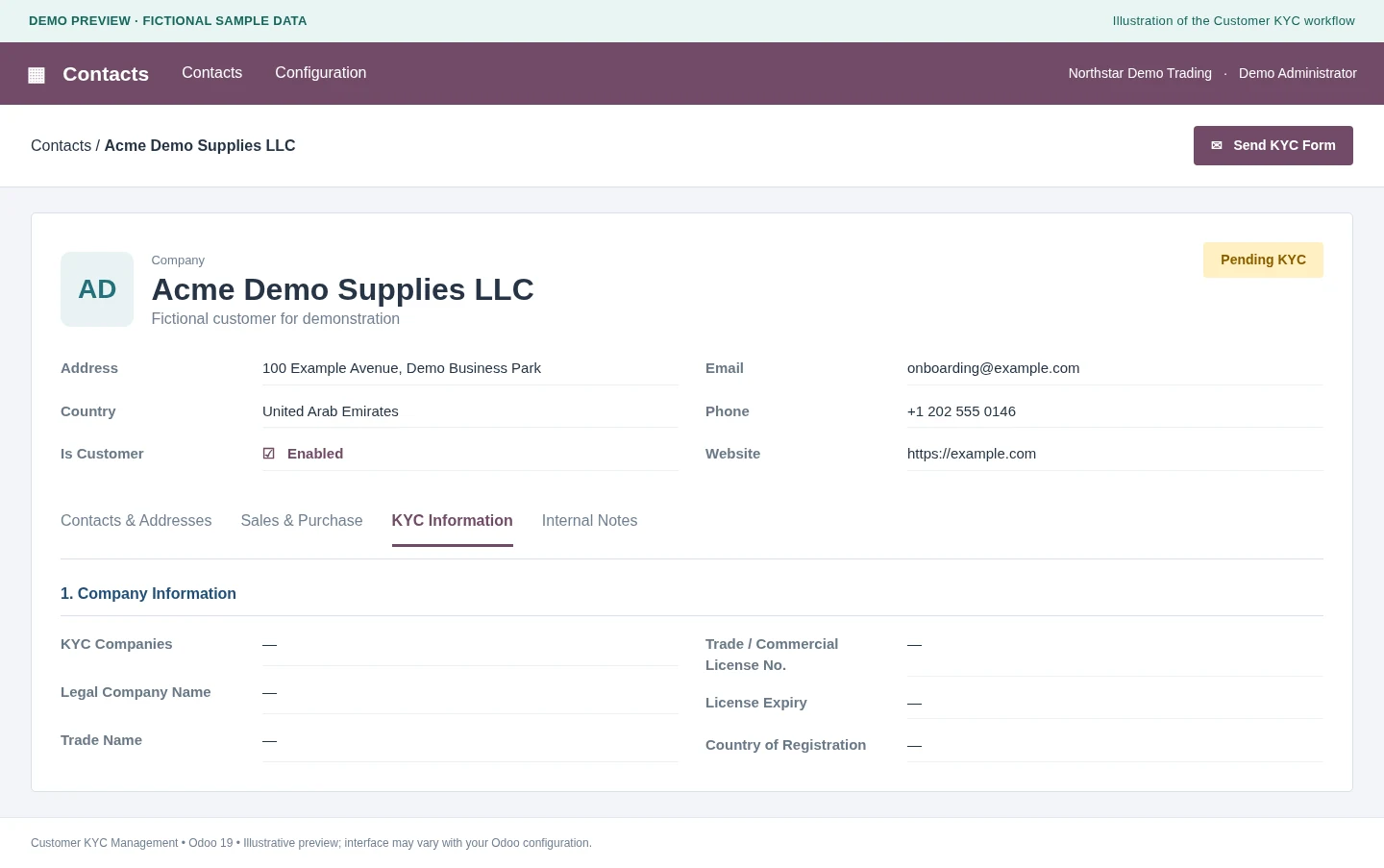
Each customer's KYC status, visible on the contact
The process starts from an existing contact. When the customer submits the form, their details and files appear in the KYC Information tab of that contact and the status ribbon updates, so anyone on the team can see where each customer stands.
Pending KYC→KYC Sent→KYC Received
KYC Received means the customer has submitted the form and documents. Your team takes the review from there.
FOR YOUR TEAM
Work from Contacts
Send a request, check the status ribbon and open submitted details and documents, all from the customer record.
FOR YOUR CUSTOMER
One link and no login
The customer fills in the form in a web browser, selects which of the offered companies the KYC is for and uploads documents. No portal account is needed.
FOR YOUR BUSINESS
Your branding on every form
The sending company's name, logo, address and contact details are added automatically to the online form and the KYC PDF.
How a KYC request moves through Odoo
The screenshots below use fictional companies and sample data. Your screens may look slightly different depending on your Odoo configuration.
Mark the Contact as a Customer
Tick one box to start
Open a contact, make sure it has a valid email address and tick Is Customer. If KYC is enabled for the active company, the contact shows a Pending KYC ribbon and a Send KYC Form button.
In this example, Acme Demo Supplies LLC is the customer and Northstar Demo Trading is the company sending the request.
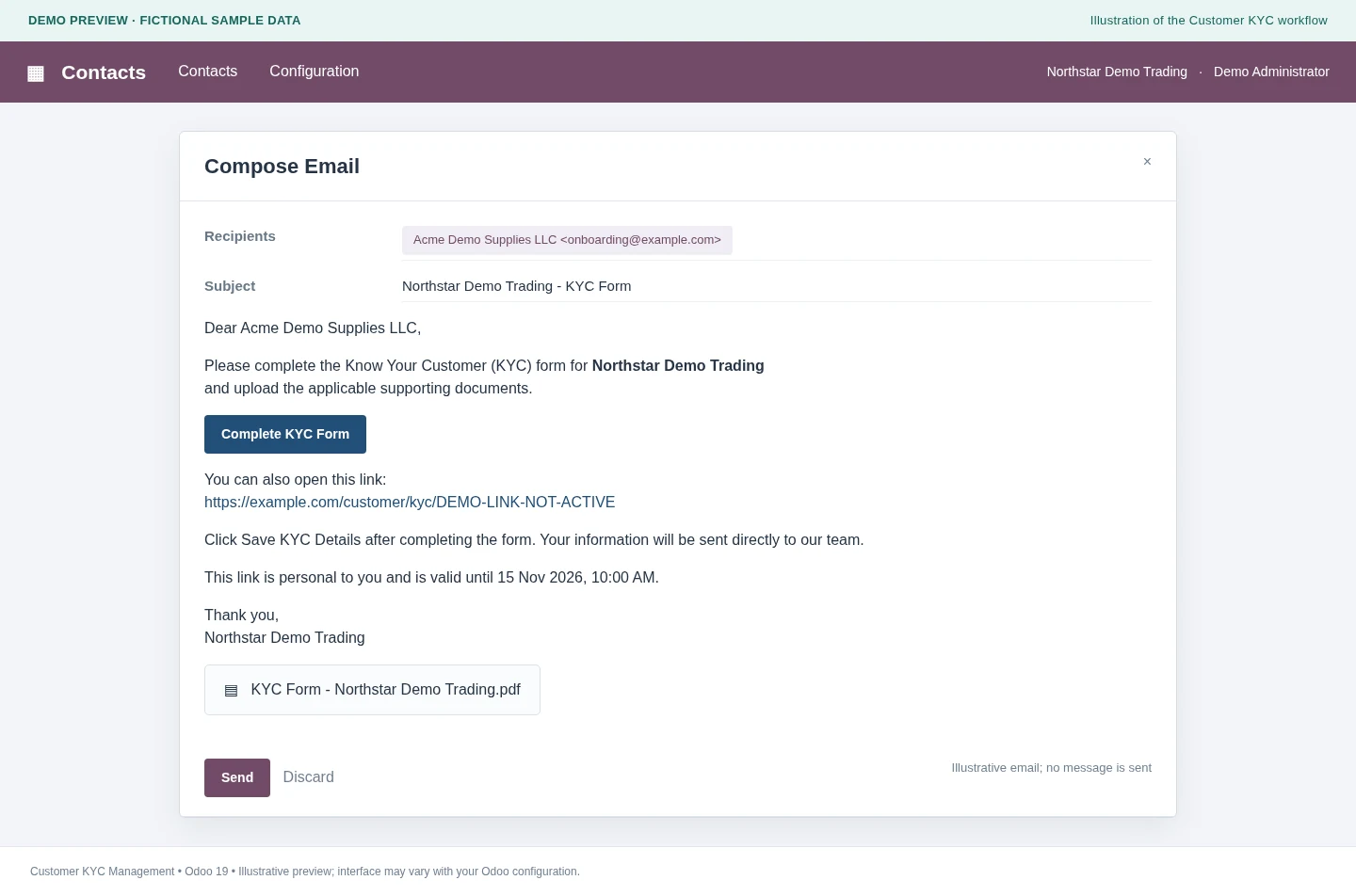
Send the Invitation
Email the form link and a branded PDF together
Click Send KYC Form to open the standard Odoo email composer with the message, form link and PDF attachment ready to review. Check the details and send. The contact moves to KYC Sent only after the email is sent, so opening and closing the composer does not change the status.
Each link uses a random access token, expires 30 days after it is created and accepts one completed submission.
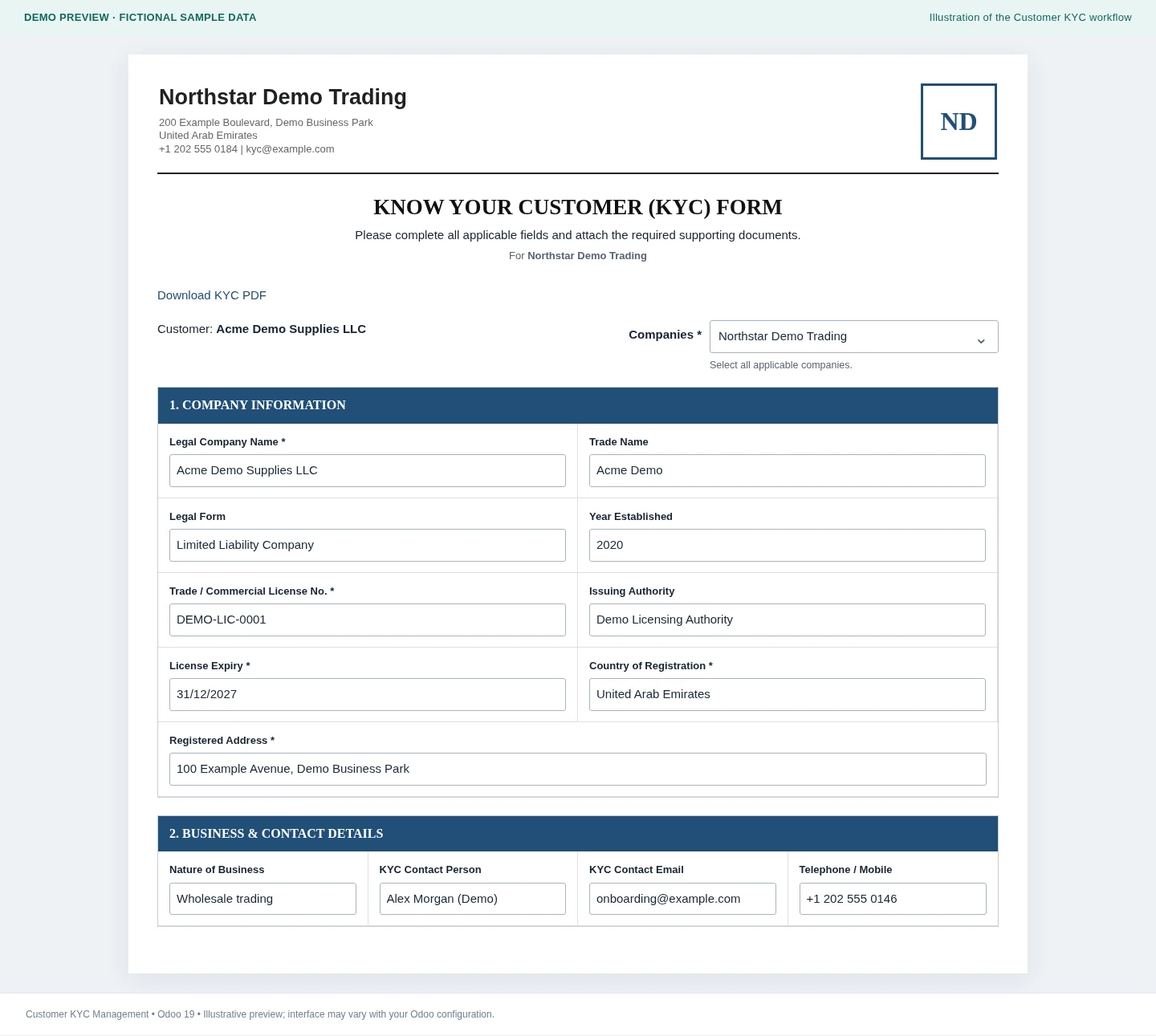
The Customer Fills in the Form
Company, ownership and bank details in one structured form
The customer opens the link and fills in company information, business and contact details, ownership and management, and banking details. Required fields are marked, and the customer selects which of the offered companies the KYC applies to.
While the link is valid, the form also offers a Download KYC PDF link. The form carries the sending company's branding.
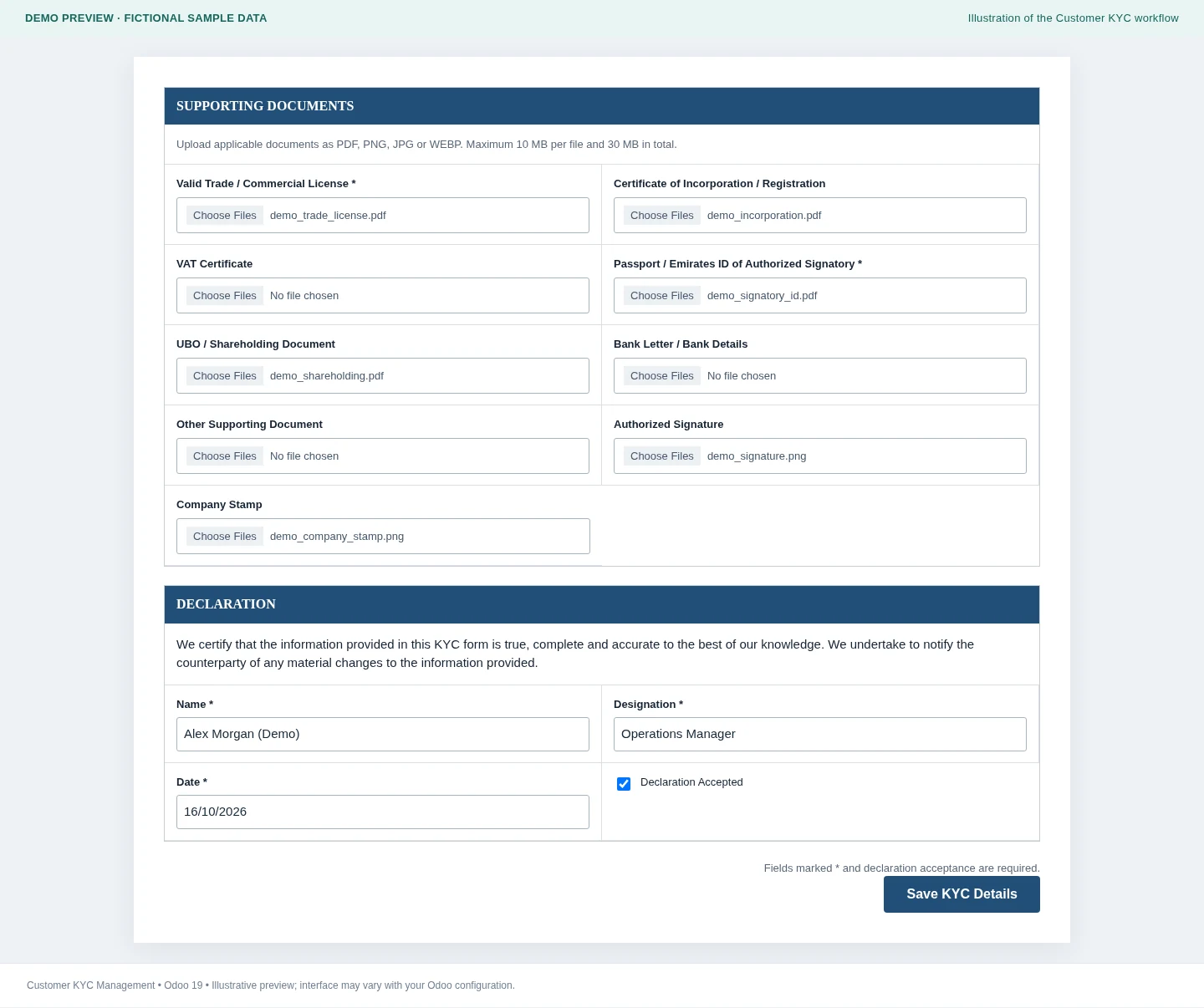
Upload Documents and Submit
Supporting documents arrive with the form
The customer uploads the required trade / commercial license and the passport or Emirates ID of the authorized signatory, adds any other relevant documents, accepts the declaration and clicks Save KYC Details.
Accepted formats are PDF, PNG, JPG and WEBP, up to 10 MB per file and 30 MB per submission. After a successful submission the customer sees a confirmation and the link closes.
Review in Odoo
Review the submission on the customer record
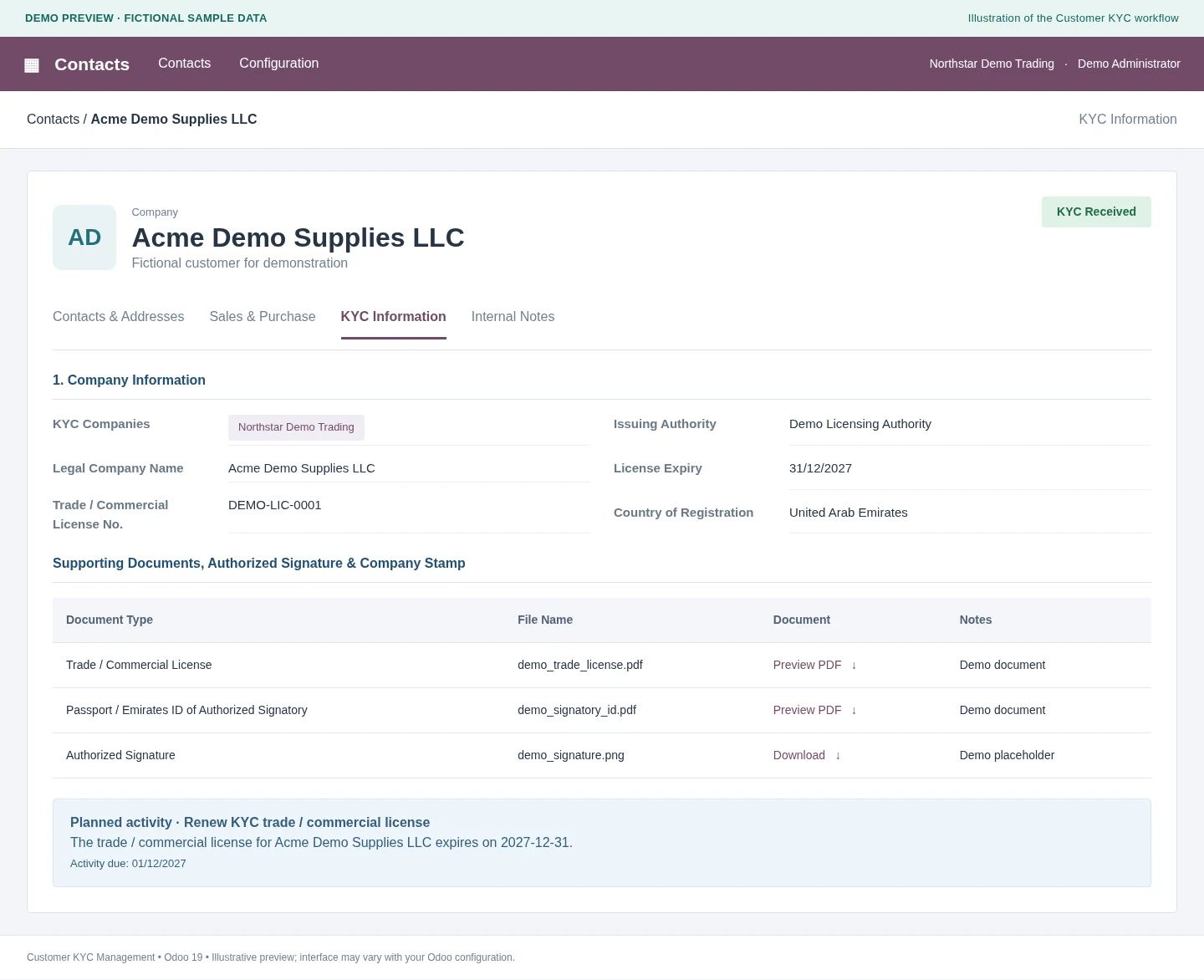
The contact now shows KYC Received. The KYC Information tab holds the submitted values and company-specific documents, PDF attachments open in a preview inside Odoo, and a chatter note records the submission.
Odoo also schedules a license renewal activity for your team 30 days before the license expiry date the customer entered. If that date has already passed, the activity is set for today.
Bulk Sending
Send KYC forms to many customers at once
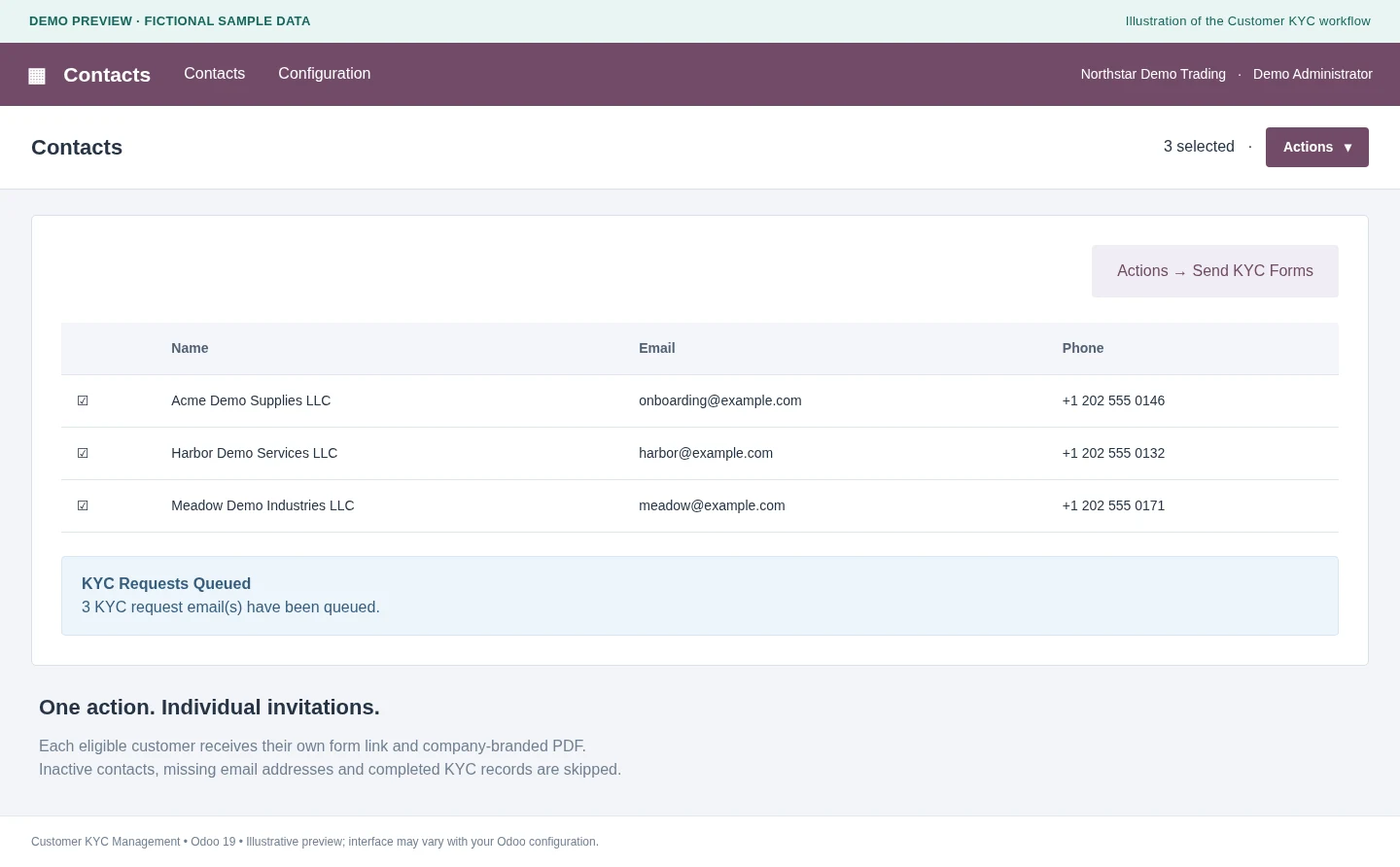
Select contacts in the list view and choose Actions → Send KYC Forms. Each eligible customer gets an individual invitation with their own form link and PDF.
A contact is eligible when it is active, marked Is Customer, has an email address and is not already at KYC Received. Odoo then reports the queued requests and any skipped contacts.
Printable KYC Form
A branded KYC PDF with every invitation
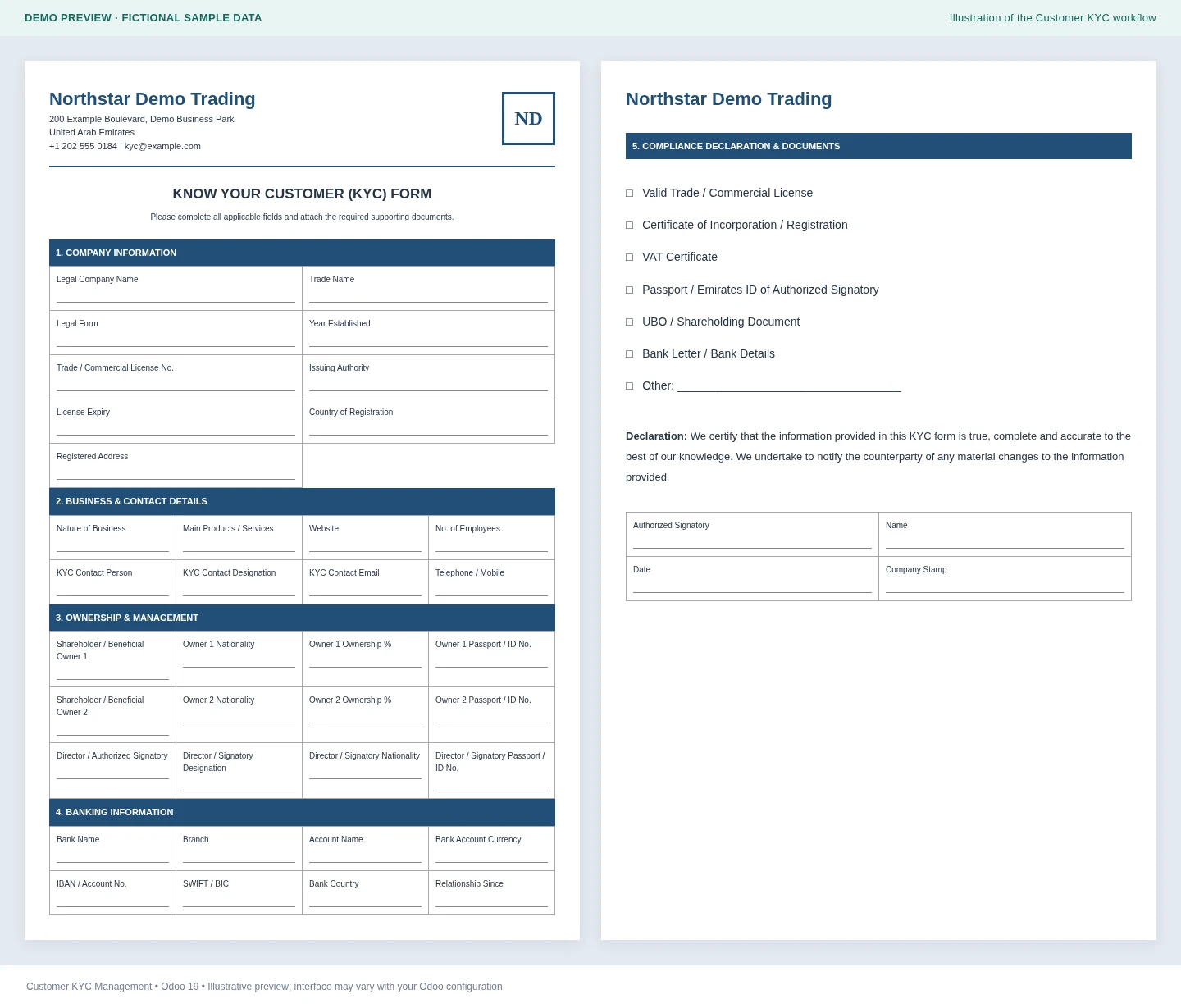
Each invitation includes a blank KYC form in PDF with the standard information sections, a document checklist and space for the declaration and signature. The issuing company's details are added automatically. The customer's own data is saved in Odoo when they submit the online form.
Multi-Company
How KYC works across several companies
Each invitation belongs to the company that sends it, and that company's branding appears on the form and PDF. The customer can only select companies that have KYC enabled and are offered by that invitation. What is offered depends on the sender's active companies and any company restrictions on the contact.
Stored per company
Submitted values, documents and renewal activities are saved for each company the customer selects. In the backend, the document list follows the active company.
One status per contact
The KYC status on the contact is shared across your companies, while the submitted information and files stay company-specific. Once the status is KYC Received, the standard Send KYC Form button is hidden.
Information the form collects
Company information
Legal name, trade name, legal form, year established, license number, issuing authority, license expiry, country of registration and registered address.
Business and contact details
Nature of business, products or services, website, number of employees, KYC contact person, designation, email and telephone.
Ownership and management
Up to two beneficial owners with nationality, ownership percentage and passport or ID number, plus a director or authorized signatory.
Banking information
Bank name and branch, account name, currency, IBAN or account number, SWIFT / BIC, bank country and the year the banking relationship started.
Declaration and documents
Declaration name, designation, date and acceptance. Upload slots cover the trade license, incorporation certificate, VAT certificate, signatory ID, UBO or shareholding document, bank letter and other documents, plus the authorized signature and company stamp.
Required fields include the key company details, the first beneficial owner and the declaration. Before saving, the form checks required values, the selected companies and the ownership percentages.
FAQ
Frequently asked questions
No, the customer opens the form from the personal link in the invitation email. Anyone who has the link can open it while it is valid, so it should not be shared.
No, each invitation accepts one successful submission. A link that has been used shows a confirmation, and an expired or unavailable link shows a message saying so.
No, the PDF sent with the invitation is a blank branded form with writing space and a document checklist. The customer's information and files reach Odoo through the online form.
A valid trade / commercial license and the passport or Emirates ID of the authorized signatory. The other upload slots are there for any further supporting documents.
No, it only confirms that the form and documents have been received, and your team carries out the review. The module does not include automated identity checks, sanctions screening, OCR or an approval and rejection workflow.
Company branding updates automatically. The information sections are the same for every company, and changing the fields or the form structure needs module customization.
No, it creates an internal Odoo activity for your team based on the license expiry date. Automatic renewal emails to customers are not part of this module.
Want a walkthrough before you install?
Reach out to the Strata Software Solutions LLP team for a demo, a scoping call, or help mapping this against your own customer onboarding process.